


Home > Support Center > Zoom in Desktop
Zoom in Desktop Freely during Presentation |
|||
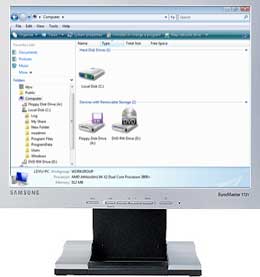
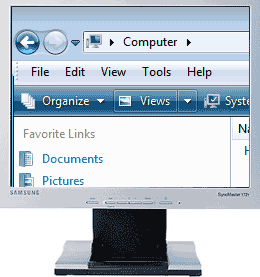
With the desktop zoom tool of Presentation Assistant, you can Zoom in to where your mouse is pointing by the simple press of a key. And then the mouse pointer changes to a hand, you can pan it by moving them vertically, horizontally, and diagonally across the display area to view specific areas of the desktop. Zooming in or out with the keyboard or wheel. |
|||
|
|||
Once Presentation Assistant is installed you can assign a hotkey to quickly zoom (by default, Ctrl+4). You can also click Full
While the desktop zoom mode is enabled, you can zoom in or out with your wheel using the mouse by holding down Ctrl, or with the Ctrl and the + and - keys. |
|||

 button on main pane to zoom in desktop.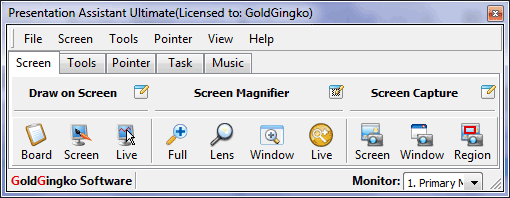

Quick info
Presentation Assistant lets you:
- Annotate screen to communicate for meetings, presentations, and training.
- Zoom in desktop to make it more visible.
- Virtual Whiteboard lets your draw on screen making it an ideal tool during presentations.
- Grab your audience's attention and focus!
- And so much more...


